 .
. Preferences – Quick Estimate
In this Topic Hide
To see a video help for this topic, click
.
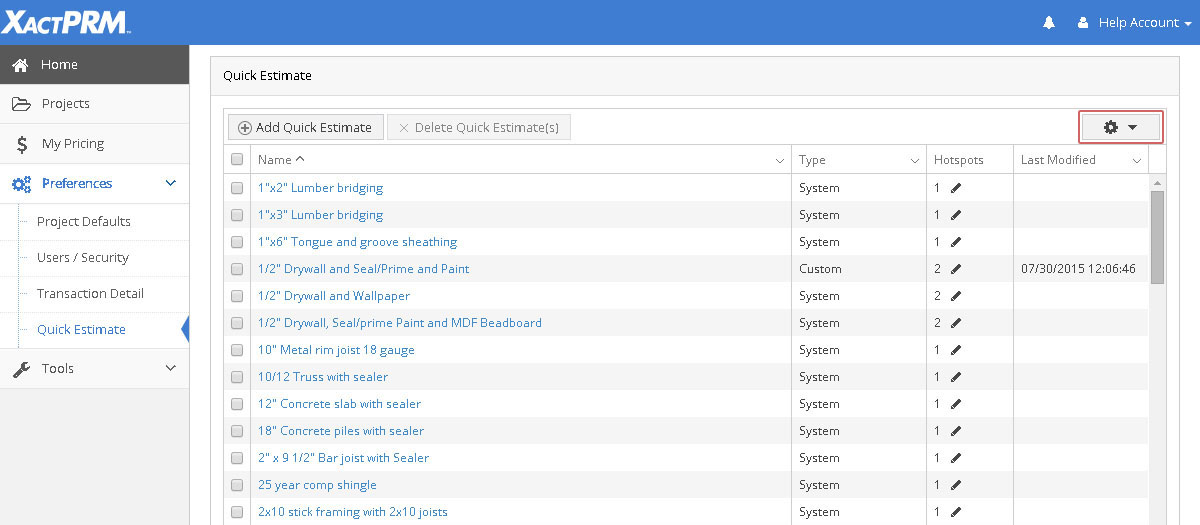
Quick Estimate is the area where a user can view, modify, or create new quick estimate sets. These quick estimates can be useful to add several common line items into an estimate all at one time. There are already several pre-determined quick estimates that exist in XactPRM, but you can change those or make your own custom quick estimates as well. The Quick Estimate tab is located under the Preferences on the main dashboard of XactPRM.

Quick Estimates that are created here will show up in the Quick Estimate portion of the estimate tab when a search or a hotspot is referenced.
Click on the name of a quick estimate, and an Edit Quick Estimate screen will open.

Click on the options cog in the upper right corner of the window.
The options cog will open to show the filter options.
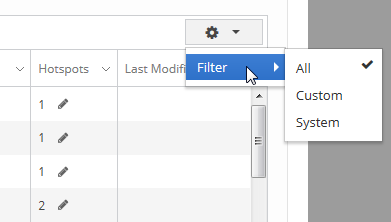
By default the All option is selected, but you can select Custom or System, to view only that particular type in the Quick Estimate table. When a particular filter is applied then at the column header a small filter icon will be displayed

Different filters can also be applied on the Name and Last Modified columns as well. To add a filter, click on the down arrow on the right side of a column heading.
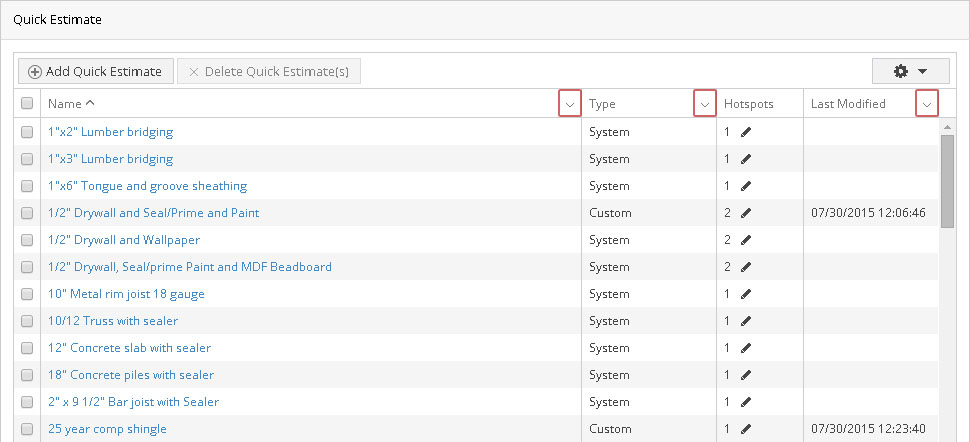
If you click on the filter dropdown at the Name and the Type, it will look like this:
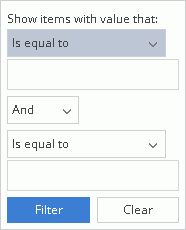
The filter dropdown for the Last Modified column will have slightly different filtering options and look like this:
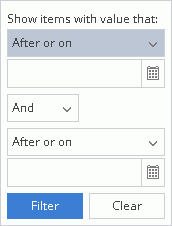
Select the dropdown and click on the filtering criteria you would like to use, then type in the data that will be used for the criteria, and click on the Filter button. The column will then filter using the selected filter and a filter icon will be displayed in the column heading where a filter is applied.
To remove a filter, click on the filter dropdown arrow again and click on the Clear button. The filter in that column will be cleared and the filter icon at the column header will also be removed.
Click on the name of a quick estimate, and an Edit Quick Estimate screen will open.
From here, new items can be added or deleted. If you don't know the actual line item code, type in a word or multiple words in the Search space provided and either hit <Enter> or click on the search icon next to the Search field. For example, when typing “paint” in the search field and then pressing <Enter>, the Search Results field will then be populated with the line items containing "paint" in the description.
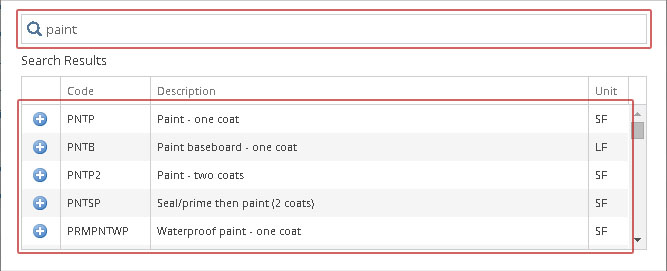
Click on the add icon adjacent to the line item you wish to add and the line item will then be added to that Quick Estimate Items list.
To remove a line item from the Quick Estimate List, click in the box adjacent to the line item(s) you wish to remove, and click on the Delete Item(s) button.
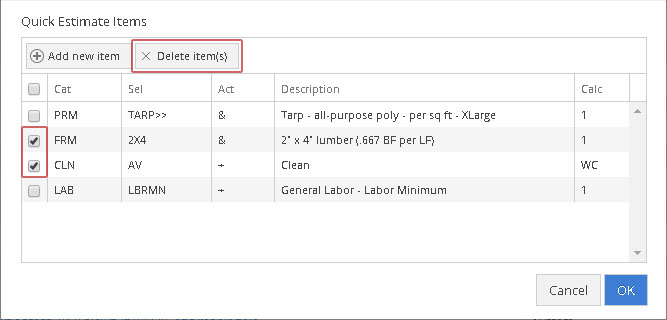
The line items will then be removed from the Quick Estimate Items list and will no longer be part of that quick estimate.
Check the box in front of the name(s) of the quick estimate you wish to remove and click the Delete Quick Estimate(s) button.

A pop-up window will appear asking to confirm the deletion of the quick estimate. If you click on Cancel, the confirmation will close and the quick estimate(s) will remain. If you click OK, the quick estimate(s) you selected will be removed from the Quick Estimate list.
Click on the Add Quick Estimate button at the top the screen.
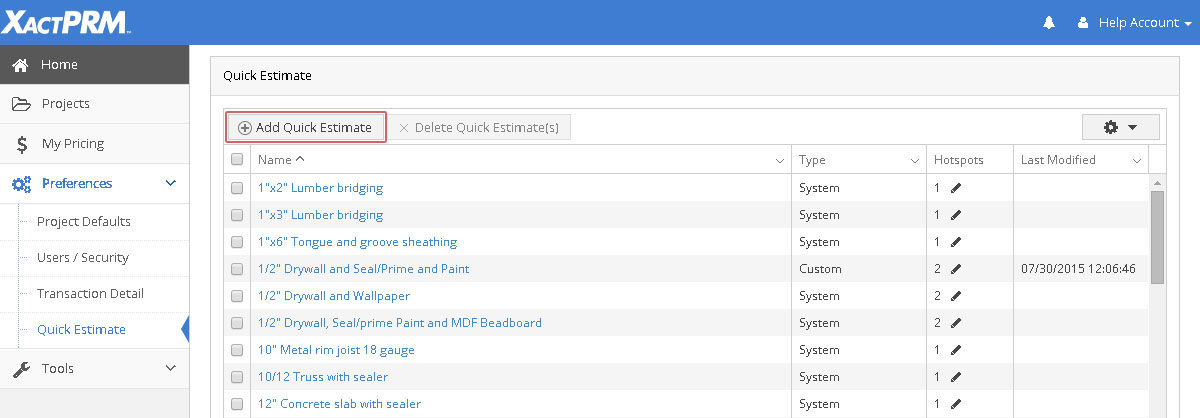
A new Add Quick Estimate window will open

Give the new Quick Estimate a Name and then add any line items you wish to be part of this quick estimate. If you don't know the actual line item code, type in a word or multiple words in the Search space provided and either hit <Enter> or click on the search icon next to the Search field. For example, when typing “paint” in the search field and then pressing <Enter>, the Search Results field will then be populated with the line items containing "paint" in the description.
Click on the add icon adjacent to the line item you wish to add and the line item will then be added to that Quick Estimate Items list.
To remove a line item from the Quick Estimate List, click in the box adjacent to the line item(s) you wish to remove, and click on the Delete Item(s) button.
The line items will then be removed from the Quick Estimate Items list and will no longer be part of that quick estimate. Once you have added all line items you wish to be part of this quick estimate and removed any that you may have accidentally added, click on the OK button. The new quick estimate that was just created will now be added to the Quick Estimate list in alphabetical order. The new quick estimate can then be accessed in the Estimate tab, by typing a word in the Search field that is part of the new quick estimate name.
User created quick estimates can also be added to reference images as hotspots. To do that, click on the icon under the Hotspots column.

A new Assign Hotspots window will open.
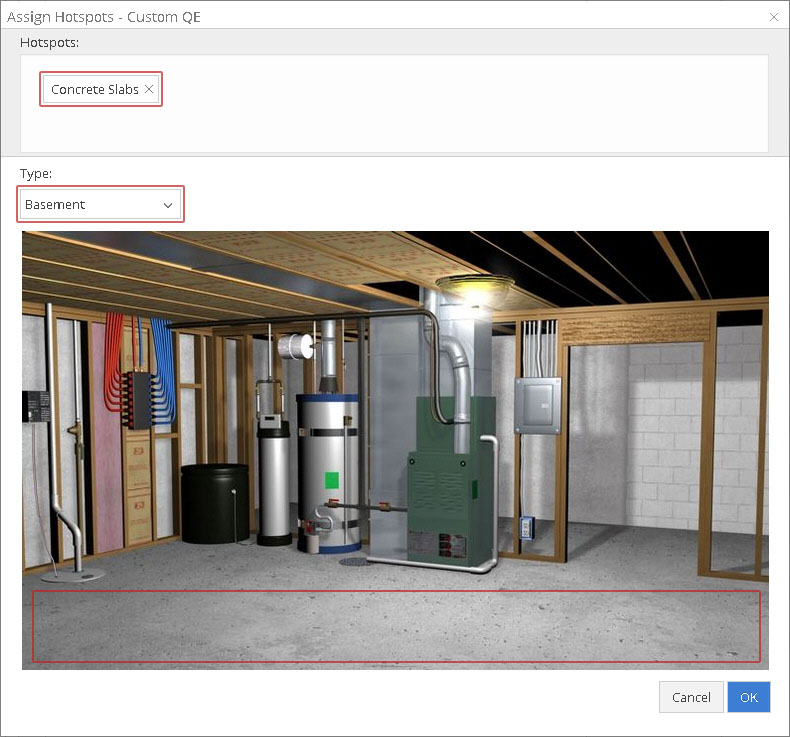
Click on the dropdown below Type. This will open the list of reference image types. This is the same list as the Group types that are found when adding a new group to an estimate. Select the type you wish to add the quick estimate to, and then select the hotspot on the image where you want the quick estimate to be located. For example, lets say that you just created a new quick estimate called "Basement floor cleanup", that had various items that related to cleaning up the floor in a basement. You would open the dropdown of the different reference image types and find the basement as shown above. You would then click on the area shown in the image that shows the basement floor. The Concrete Slabs hotspot would now have the "Basement floor cleanup" quick estimate added to the image. Now, whenever a group that has Basement as its type and the floor area hotspot is selected, the "Basement floor cleanup" will be shown in the Quick Estimate window. That same quick estimate would be accessible for any other image that might have a hotspot that is called Concrete Slabs.
For Technical Support please call 1-800-710-9228 or click here to access our live chat service.
Copyright 2004-2018 Xactware Solutions, Inc. All rights reserved.