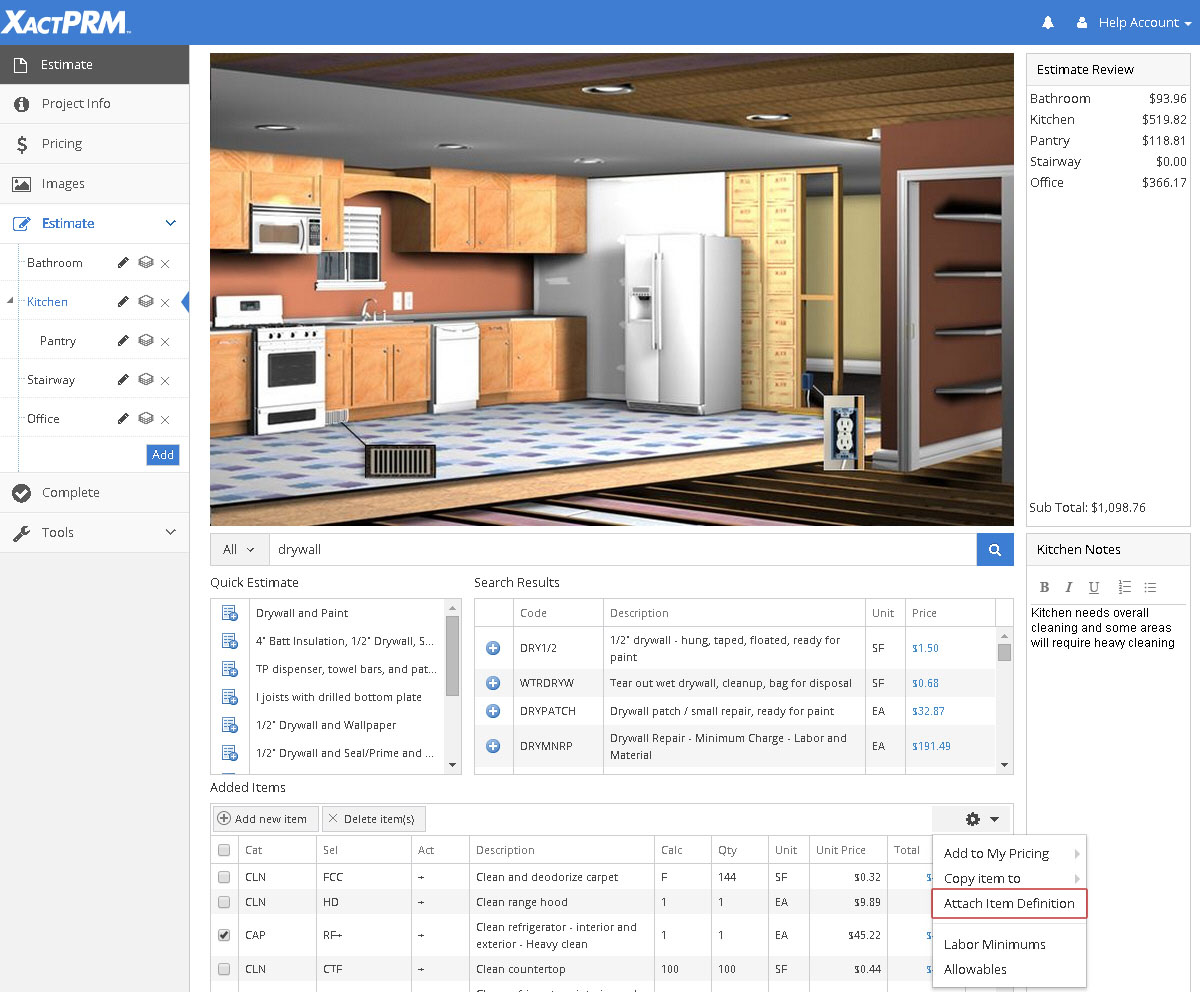
Attach Item Definition
In this Help Topic Hide
Attach Item Definition allows the user to add a line item note, that is the actual definition of the line item, to the item as an attached note. If you want to just add a custom note of your own making, see the "To add a line item note" portion of Added Items. The Attach Line Definition can be found in the Estimate tab within a project, in the Estimate Options cog, located in the Added Items section.
Click in the box adjacent to the line item(s) you wish to add the definition note to, then click on the estimate cog to open the dropdown. If you don't click in the box before opening the dropdown, the Attach Item Definition option will be greyed out and not available.

Select Attach Item Definition and the line item definition(s) will be added to the line item(s) as an attached note. To show that there is an attached note the attachment icon will turn blue. To open the note and view what it contains, simply click on the blue note icon.
Click on the blue attachment icon and the line definition note will open. Highlight the complete note and click <Delete>. Click outside the note area and the dialog box will close and the attachment icon will turn black, to show there is no line item attachment.
Click on the blue attachment icon and the line definition note will open. Make any change you wish to the note. When you have made all of the desired changes, click outside the note area and the dialog box will close.
For Technical Support please call 1-800-710-9228 or click here to access our live chat service.
Copyright 2004-2018 Xactware Solutions, Inc. All rights reserved.